![Ravyen Transparent 1390x426-1.png]](https://insights.rayven.io/hs-fs/hubfs/000%20-%20Rayven/Rayven%20Brand%20Assets/Rayven%20Logos/Ravyen%20Transparent%201390x426-1.png?height=50&name=Ravyen%20Transparent%201390x426-1.png)
What It Does
This node formats workflow data into structured rows and uploads it to a specified FTP folder. Data is batched and pushed at a defined interval. It's suitable for integrating Rayven with legacy systems, file-based ETL processes, or external data lakes that use FTP ingestion. The output format is configurable, including headers, delimiters, and secure transmission via TLS.
Step-by-Step: How to Configure the FTP Output Node
-
Add the node
-
Drag the FTP Output Node from the Outputs section to the canvas.
-
-
Connect upstream data sources
-
Link one or more nodes that emit payloads you want to export.
-
-
Open configuration window
-
Double-click the node to define connection credentials, output structure, and interval settings.
-
-
Activate the node
-
Click Activate and then Save to begin FTP transmission.
-
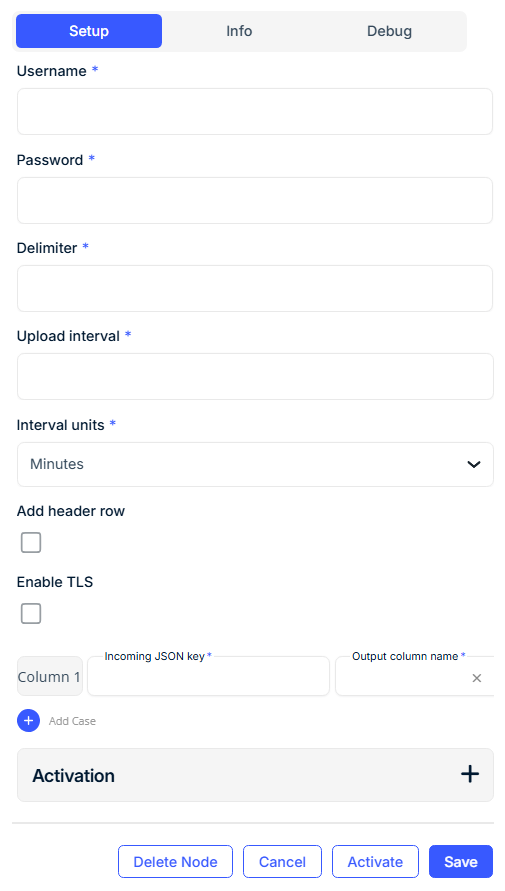
⚙️ Configuration Fields
🔗 FTP Upload Settings
| Field | Requirement | Description |
|---|---|---|
| Node Name* | Required | Logical identifier for the node. |
| Upload Content to FTP Folder as it Arrives | Optional | If enabled, data is uploaded immediately after receipt, instead of being batched on a schedule. |
| FTP Address* | Required | IP or hostname of the FTP server (e.g., ftp.example.com). |
| Username* | Required | FTP login username. |
| Password* | Required | FTP login password. |
| Enable TLS | Optional | When checked, uses TLS for secure file transmission (FTPS). |
| Delimiter* | Required | Character used to separate columns in the exported file (e.g., ,, ;, \t). |
| Add Header Row | Optional | If enabled, the output file will include column headers (based on Output Column Names). |
⏱️ Upload Schedule
| Field | Requirement | Description |
|---|---|---|
| Upload Interval* | Required | Frequency of upload batches. |
| Interval Units* | Required | Units for the interval (Minutes, Hours, etc.). |
🧾 Output Mapping
Each row in the output file is constructed by mapping incoming JSON fields to columns.
| Field | Requirement | Description |
|---|---|---|
| Incoming JSON Key* | Required | Key from the incoming JSON payload to be written into the file. |
| Output Column Name* | Required | Header name for the column in the output file. |
To add more columns, click + Add Column.
⚙️ Activation Filters (Optional)
| Field | Description |
|---|---|
| Logical Operand | Choose AND or OR for how filter criteria are combined. |
| Select Data Source Filter | Specify UID(s) or labels to include/exclude based on device metadata. |
🧾 Output File Example
Input Payload:
{
  "device_id": "pump-01",
  "temperature": 67.4,
  "status": "OK"
}
Configuration:
-
Delimiter:
, -
Output columns:
-
device_id → DeviceID -
temperature → Temp -
status → Status
-
-
Add Header Row: Yes
Output File:
DeviceID,Temp,Status
pump-01,67.4,OK
🧠 Best Practices
-
Always use TLS if supported by your FTP server.
-
Enable Header Row for machine readability or downstream processing.
-
Ensure field names in the mapping match the actual JSON structure of the incoming payloads.
-
Validate upload frequency to avoid generating excessive file volume or FTP load.
🎯 Use Cases
-
Push calculated results or filtered events to third-party ETL pipelines
-
Deliver tabular data to external file systems for batch processing
-
Synchronize device state logs with legacy applications via CSV over FTP
-
Periodically export aggregated workflow output to external data lakes
❓ FAQ
Q: What happens if the FTP connection fails?
A: The system retries in the next cycle. You can monitor errors in workflow logs or dashboards.
Q: Can the node export files in other formats?
A: Currently, output is row-based using configurable delimiters (CSV-style). XML or JSON export is not supported by this node.
Q: Does this node overwrite existing files?
A: Each upload appends a new file with a timestamp-based filename. Files are not overwritten.