![Ravyen Transparent 1390x426-1.png]](https://insights.rayven.io/hs-fs/hubfs/000%20-%20Rayven/Rayven%20Brand%20Assets/Rayven%20Logos/Ravyen%20Transparent%201390x426-1.png?height=50&name=Ravyen%20Transparent%201390x426-1.png)
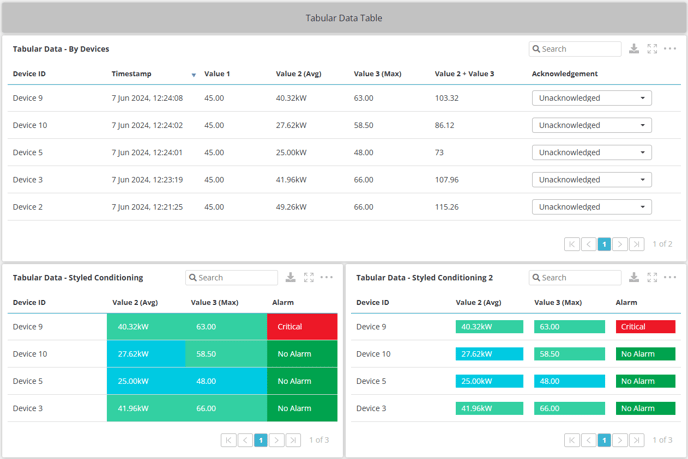
What Is a Calculated Data Table?
A Calculated Data Table displays structured data with custom logic per column. It supports:
-
Columns derived from workflow fields, data sources, or event dates
-
Conditional display of rows or values
-
Inline calculations and formatting
-
Optional visibility logic based on input conditions
Step-by-Step: How to Configure the Calculated Data Table Widget Node
-
Add the widget
-
Drag the Calculated Data Table Widget Node from the Visualizations panel to the canvas.
-
-
Connect the widget to the data source
-
Link the widget to one or more upstream workflow nodes that emit the relevant fields for each table column.
-
Conditional display logic may also depend on input data fields.
-
-
Open configuration
-
Double-click the widget to open the settings window.
-
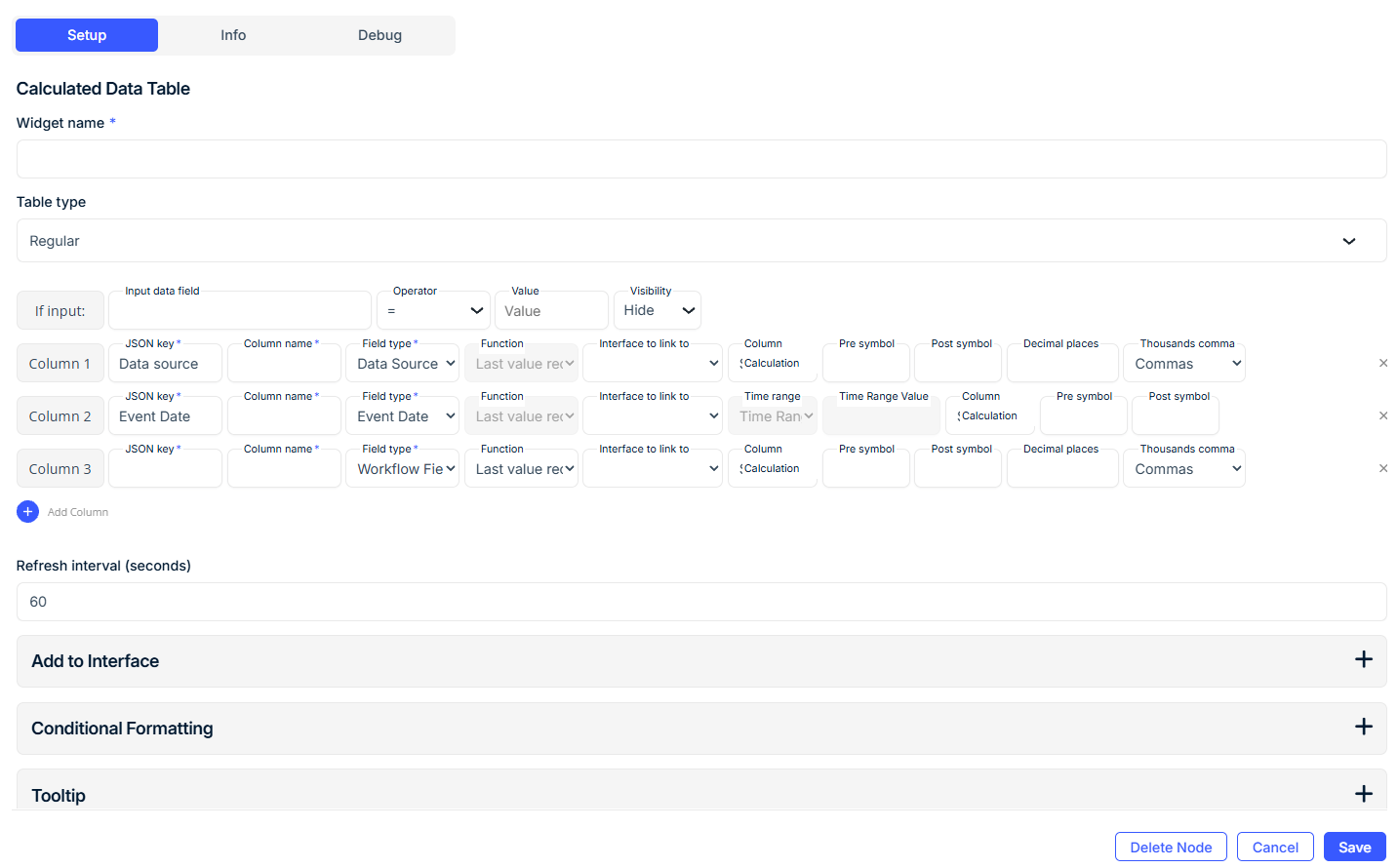
General Settings
| Field | Requirement | Description |
|---|---|---|
| Widget Name* | Required | Title shown above the table. |
| Table Type | Required | Choose Regular (fixed structure). |
| Refresh Interval (seconds) | Optional | Update frequency for new data (default: 60 seconds). |
| Show Devices | Optional | Toggle to show or hide device names in the table. |
| Calculation Interval | Optional | Time window for value aggregation. |
| Time Units | Optional | Unit for interval: Seconds, Minutes, Hours, etc. |
Conditional Display Logic
| Field | Requirement | Description |
|---|---|---|
| If Input | Optional | Add conditional display logic. |
| Input Data Field | Required (if used) | JSON key to evaluate. |
| Operator | Required (if used) | Example: =, >, <, etc. |
| Value | Required (if used) | Target value to compare against. |
| Visibility | Optional | Choose to Hide or show content when condition matches. |
Column Configuration
Each column can be configured independently using the following fields:
| Field | Requirement | Description |
|---|---|---|
| JSON Key* | Required | The key in the JSON payload providing data for the column. |
| Column Name* | Required | Label shown in the table header. |
| Field Type* | Required | Choose one: - Data Source- Event Date- Workflow Field |
| Function | Optional | Choose from: - Last value received, Sum, Average, etc. |
| Time Range / Value | Optional | Set aggregation window for Event Date or Time Series fields. |
| Column Calculation | Optional | Perform additional logic: difference, percentage, etc. |
| Pre / Post Symbol | Optional | Display units before/after (e.g., $, %). |
| Decimal Places | Optional | Set precision for numeric fields. |
| Thousands Comma | Optional | Enable comma separators for large values. |
| Interface to Link To | Optional | Redirect users when clicking this column. |
Repeat column configuration as needed.
Conditional Formatting
| Field | Requirement | Description |
|---|---|---|
| Color Fill | Optional | Choose between: - Value Background Only- Entire Cell |
| Conditional Linking | Optional | Make cell values redirect conditionally based on logic. |
Tooltip & Interface
| Field | Requirement | Description |
|---|---|---|
| Enable Tooltip | Optional | Show additional details when hovering over a cell. |
| Tooltip Text | Optional | Custom tooltip message. |
| Add to Interface* | Required | Assign the table to one or more interfaces. |
Grouping & Display
| Field | Requirement | Description |
|---|---|---|
| Select Label | Required (if grouped) | Use device label for filtering or grouping. |
| Grouped Display Mode | Optional | Choose: - No Grouping - Group by Label Value - Group by Label Name |
| Number of Widgets to Display | Optional | Cap the number of grouped widgets rendered. |
Best Practices
-
Use pre/post symbols for clarity in units
-
Apply conditional formatting to emphasize critical metrics
-
Use workflow field when referencing computed fields or variables
-
Enable interface linking for drill-down exploration
-
Use input-based visibility to simplify data under certain conditions
Use Cases
-
Compare calculated efficiency, performance, or error metrics
-
Display compliance status by site or device
-
Summarize workflow outputs and intermediate results
-
Create dynamic tables that adapt based on input criteria
❓ Frequently Asked Questions (FAQ)
Q: Can I calculate differences between two columns?
A: Yes. Use the Column Calculation setting to apply formulas like subtraction or ratio.
Q: Can I conditionally hide a column?
A: Not per-column—but you can use the Visibility setting at the widget or row level using input rules.
Q: Can I show only rows where a certain value is true?
A: Yes. Use the Input Data Field + Operator logic to control when rows or values appear.